A photo finish replaces the whole row of lane timers with a single camera. It records the finish line for the length of the heat, and afterward you read the result off that recording, one crossing at a time, with no reaction time in any of the numbers.
So the job has two halves, and they happen at different moments. During the race, you run the camera. After the race, you mark the strip. Neither half is hard, but the first one cannot be redone, so it is the one to get right.
For what the strip actually is and why it looks the way it does, see how the photo finish camera works. This page is about running it at a meet.
Setting up
Join the meet in the Photo Finish role and choose Line Camera as your job. There is only ever one line camera in a meet, so every camera-captured time has exactly one place it came from.
If you have a second person, they join the same role and choose Bib Collector, and stand in the finish chute. The camera gets you the times; the chute gets you the names. See roles and responsibilities for how the two split.
Mount it, then leave it alone
The camera has to sit still for the whole heat, and ideally for the whole meet. Put it on a tripod or a solid mount, in line with the finish line, off to the side of the track, looking straight across the lanes. Hand-holding does not work: every wobble moves the line the camera is reading.
Mount it as high as you safely can. From above, the camera looks down across the lanes, so a runner in a near lane is less likely to hide one finishing beside them.
Turn the device the way the screen asks. If it is the wrong way round, the capture screen shows Rotate to landscape for accurate capture (or portrait, on an iPad) and will not record until you do. This is not a layout preference. The orientation decides whether runners come out upright or slanted in the strip.
The screen stays awake while you are the line camera, so it will not lock between heats. Plug it in if you can: a camera running for a whole meet uses a lot of battery.
Aim the line
Tap Align on the heat screen. You get a live view with a yellow vertical line over it. Drag the line until it sits exactly on the finish line, then tap Done. Nothing is recorded while you do this, and the position carries into every heat after it.
Take your time here. This is the one setting that affects every result, and the strip cannot show you it was wrong. A line a little past the finish makes every time in the heat a little slow, all by the same amount. Check it again after anyone bumps the mount.
The rhythm of a heat
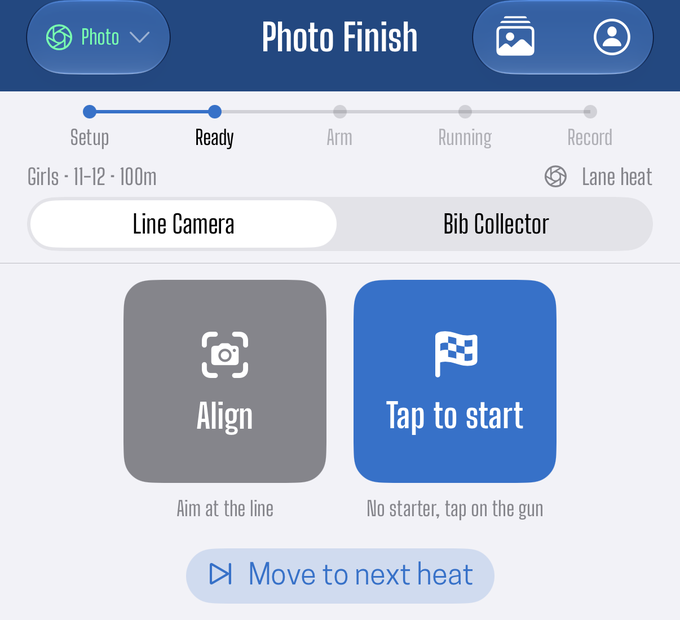
- The heat arrives. When the start line sends the heat out, your screen shows it. Tap Align if you want to check your aim, then Ready once the camera is set. Ready tells the crew the finish is covered; tap it again to step away while the heat is still being set up.
- The heat is armed. The screen shows Armed, Awaiting gun signal. Nothing for you to do.
- The gun fires. The capture screen opens on its own, with the race clock running.
- Tap Record before the leaders reach the line. The camera does not start recording by itself. The gun opens the screen; you start the recording. Do it early: anything that crosses before you press Record is not on the strip.
- Tap Stop after the last runner has crossed. Recording only ends when you stop it.
- Review & mark. Open the strip, mark each crossing, then tap Record to send the marks.
The screen then waits for the next heat.
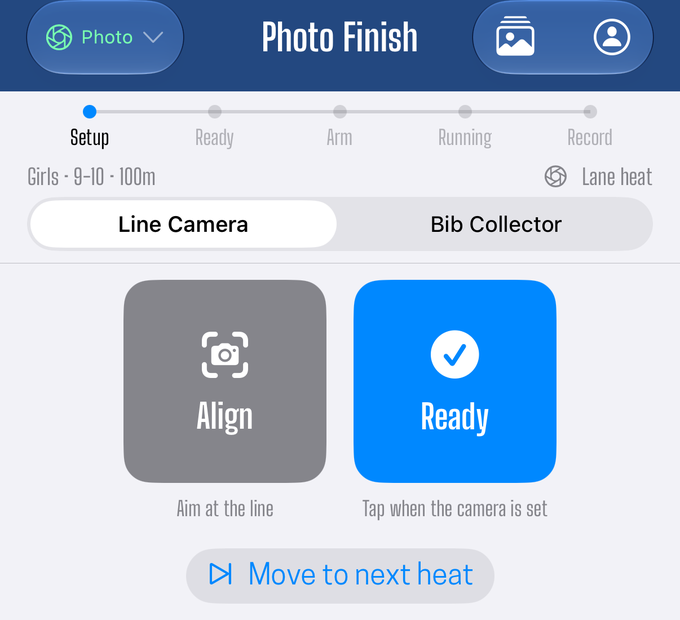
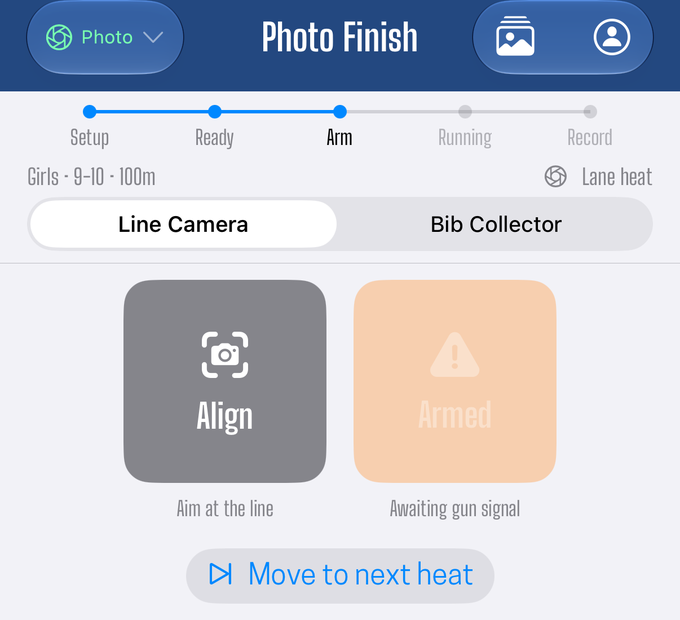
Start early, stop late. A strip with a few extra seconds at either end costs you nothing but a little scrolling. A strip that started a moment too late has lost a runner for good, and there is no way to get that crossing back.
By default the camera skips stretches where nothing is moving across the line, so a long gap between
the leaders and the last finisher does not fill the device with empty track. The skipped time shows in
review as a marker like 4.2s skipped. The button to the left of Record turns that off if you would
rather keep every frame.
Marking the strip
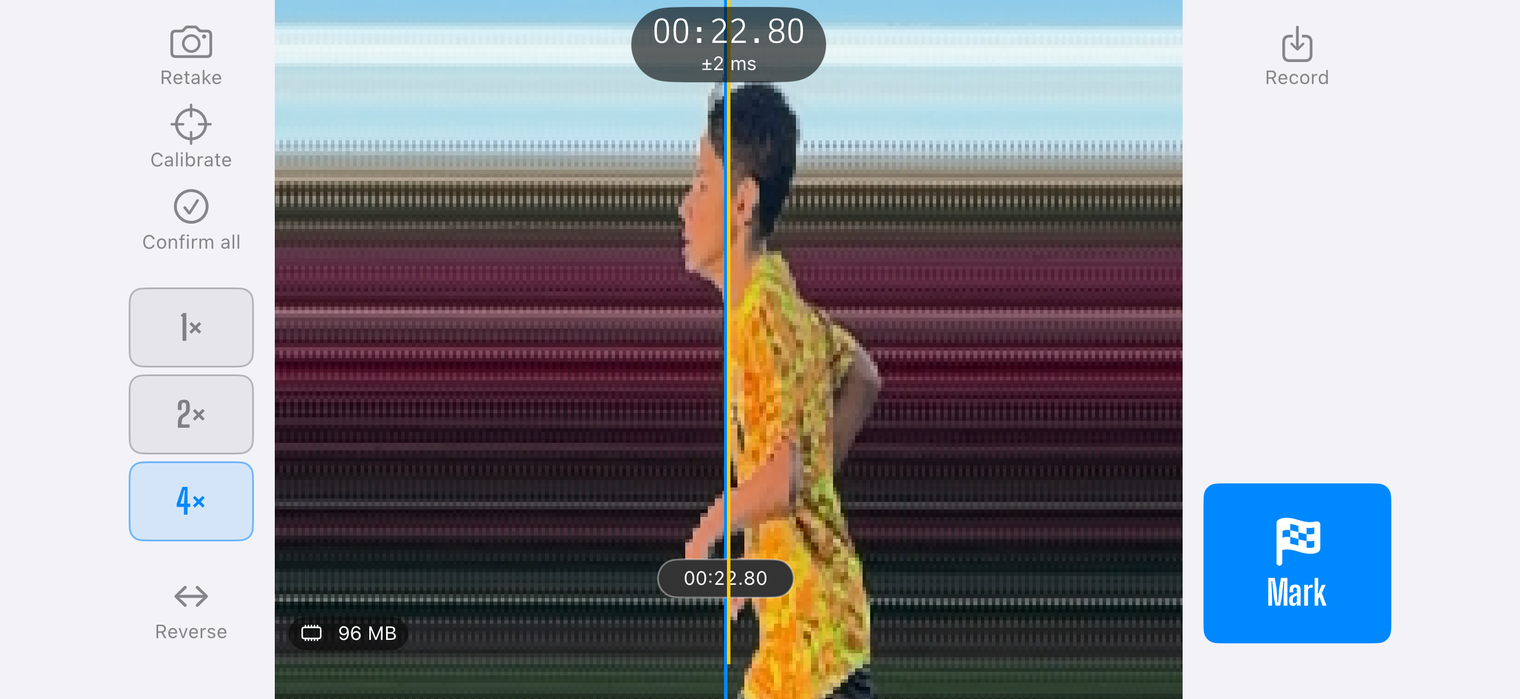
The review screen shows the strip scrolling under a fixed yellow read line in the middle. The time
at the top is the time at that line, with its accuracy underneath, for example ±2 ms.
- Scroll until the read line sits on a runner's torso.
- Tap Mark. A chip with the time drops onto the strip at that spot.
- Move on to the next runner and repeat.
Mark the torso, not the head, an outstretched arm, or a foot. Torso is what the result is measured on. Use the 1×, 2×, 4× buttons to zoom in on a close finish; zooming keeps the read line on the same moment.
To fix a mark, drag its chip sideways to the right spot. To remove one, drag it off the bottom of the strip until it reads Clear mark, and let go.
When every crossing is marked, tap Record. The button reads Done instead if you did not change anything. Either way the marks go out to the crew and the strip goes to the record keeper.
Lane heats
In a lane heat, every mark belongs to a lane. The Mark button shows which one, Lane 4 for
example, and moves on to the next unmarked lane by itself after each mark. To mark a different lane,
pick it on the lane rail first. A lane with a mark gets a green tick.
Bibs fill in from the lane assignments, so you never type one. The places come from the marked times.
The slow part of a lane heat is working out which lane each runner is in. If your Bib Collector records the judge's calls during the race, the lane rail puts itself into that order and Mark simply walks along it. See call the finishing order, which also covers fixing an order that was called wrong.
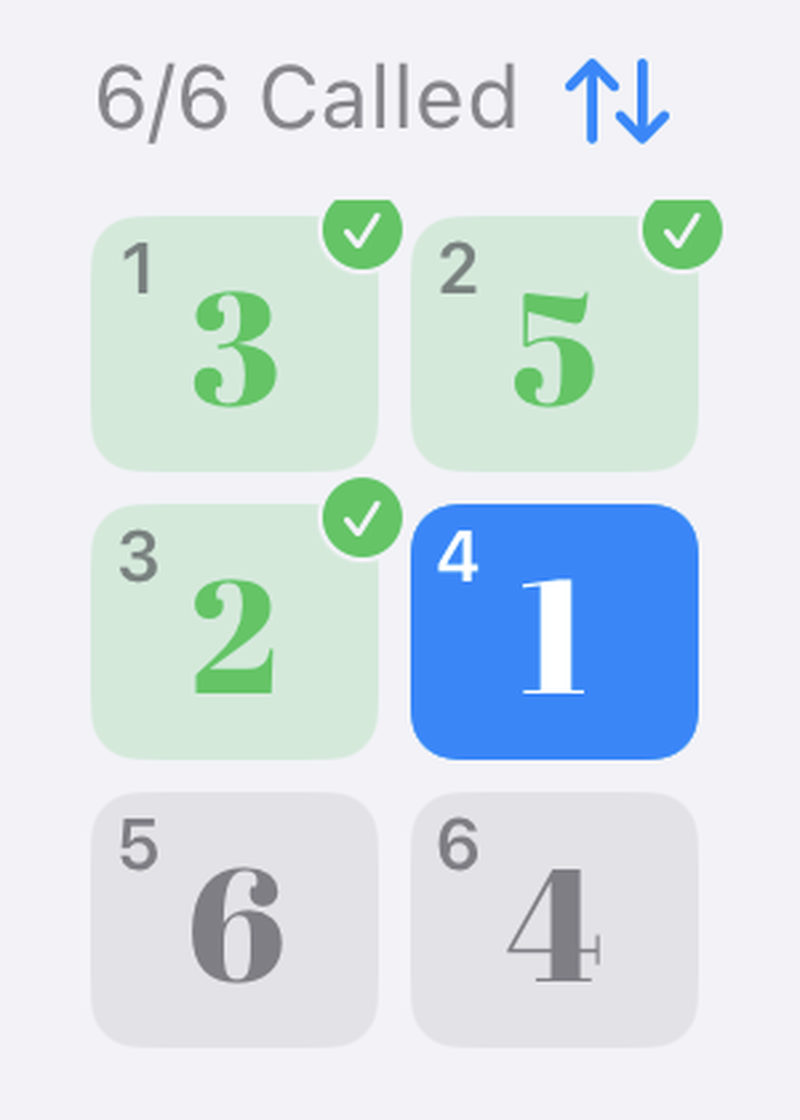
Pack heats
In a pack heat there are no lanes. Each mark is a crossing, and crossings are numbered in the order they crossed. You do not attach bibs on the camera: the Bib Collector, or the Pack Bib Collector, matches a bib to each crossing, and the names appear on your chips as they come in. See collecting bibs in lane heats vs. pack heats.
Things that will happen
You started recording late, or stopped too early. Tap Retake in review to go back to the camera, then Record. You are asked whether to Continue strip, which adds the new take onto the end of the one you have, or start a New strip. Continuing keeps the marks you already placed.
The next heat's gun fires while you are still marking. That is normal when heats run close together. The heat you were marking is sent as it stands, and the camera opens for the new heat. Go back and finish the old one afterward from Finish Images (below).
You want to mark later. That is fine. A strip goes to the record keeper whether or not it has any marks yet, so you can record now and mark when there is a gap in the schedule.
You need to fix a heat you already sent. The photo icon in the toolbar opens Finish Images, a list of every strip from the meet, marked or not. Open one to change its marks. A heat the record keeper has finalized opens view only.
You need to move on to the next heat without marking. Use Move to next heat. Only this device moves on: the rest of the crew stays on the heat, and its strip is sent as it stands. If the strip has not been marked or even opened, you are asked to look at it first, with Move on anyway if you really mean to.
There is no starter. If nobody is on the start line's Starter screen, Ready becomes Tap to start, subtitled "No starter, tap on the gun". Tap it when the gun fires.
You lost signal. Marks and strips are kept on the device and sent when the connection comes back. Keep capturing.
The app was closed mid-heat. Avoid this. The heat itself is restored when you reopen the app, but a strip that was still recording, or had not been sent yet, may not be. If it happens, tell the record keeper which heat it was.
What this position does not do
- It does not identify runners. The camera cannot read a bib. In a lane heat the bibs come from the lane assignments; in a pack heat they come from the chute.
- It does not decide a contested result. You mark what the strip shows. The record keeper can review the same strip, adjust a mark, and settle it.
- It does not hold up the start. Ready tells the crew the finish is covered, but a heat can be armed and fired whether or not you tapped it. If the gun goes while you are not ready, tap Record.
Did this answer your question? If something here is wrong, missing, or out of date, tell us at support@finishlinetimer.com and we’ll fix it.