
The coordinator is whoever created the meet. It is not chosen from the role list the way the timing positions are: the device that opens the meet holds it, and holds it for the whole meet.
It is also the only role with a subscription behind it. Everyone else joins with a code, as themselves, with no account, on whatever phone is in their pocket.
The job has four parts, and they are very unevenly sized. Almost all of it is preparation, most of which does not have to happen on meet day at all.
1. Set the meet up
This is the bulk of the work, and the part that pays for itself across a season rather than in one afternoon.
Your organization, once. Teams, athletes and bib numbers, events, genders, age groups, and your timing settings including lane count. This follows your account rather than your device, and it carries from meet to meet, so it is mostly a first-season task.
The meet itself. A name, a date, a venue, and which teams are competing. A meet can be scheduled days or weeks ahead; people following your team see it listed as upcoming before there is anything to time.
Optionally, a heat sheet. You do not need one. The start line can build every heat by hand as the meet goes. What a sheet buys is that staging loads each heat with a single tap instead of re-entering the event, gender, age group and every bib at the chute. See set up a heat sheet.
Only one thing actually blocks you
At least one team must be assigned to the meet. That is the only hard requirement, because the join screen shows team names and there is nothing to show without one.
Everything else is advisory, and the app says so rather than stopping you. Before the meet opens, it lists whatever is missing (genders, age groups, events, or a roster for the teams competing) with the consequence spelled out next to each, and a way straight into the editor. You can also say Start Anyway, which is the right answer for an ad-hoc time trial with no roster.
What the warning is about: your setup is captured at the moment the meet opens and handed to every device that joins. A meet opened with an empty roster gives every volunteer an empty roster, and no bib on any device will resolve to a name. It can be repaired afterward, though it takes longer than it would have beforehand, and from the track there is no way to tell why the names are missing.
The roster check is scoped to the meet, not to your account. You can have hundreds of athletes on file and still be running a meet none of them are in, which is exactly the case worth warning about.
2. Open the meet and let the crew in
Opening the meet is Start Live Meet. Your device becomes the coordinator, and the screen you spend the meet on is Meet Coordinator Status on the Timing tab.
The join code
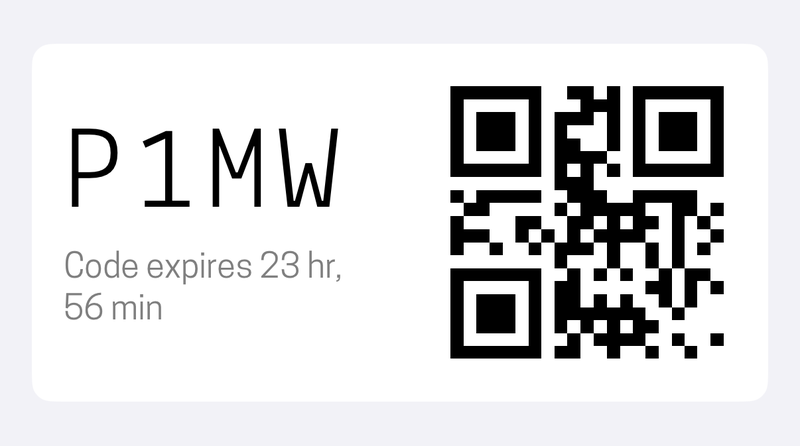
The meet's join code sits in the corner of the meet card, and tapping it opens the full-size version with a QR square. A crew member either types the four-character code or scans the square. Screen brightness goes to maximum while it is open, so a phone camera can read it in sun.
Codes last 24 hours. A meet does not, so a code will not expire out from under you mid-afternoon.
Admission
Joining is a request, not an entry. A device that redeems the code appears in your Participants list as pending, with Admit and Decline beside it. Nothing that device does counts until you admit it.
The header counts devices against your plan's limit, and turns red at the cap.
After that, presence takes care of itself:
- Green dot: admitted and connected, with the role and lane it picked.
- Grey dot: away. The app was backgrounded, the phone locked, or the signal dropped. The entry stays put and the device is re-admitted automatically when it comes back, so nobody has to be let in twice for walking behind a building.
- Gone from the list: that person tapped Leave. Rejoining is a fresh request and needs your approval again.
A device that was only ever pending and then disappeared stays pending. Being backgrounded is not a way around admission.
You can also remove an admitted device at any time, which disconnects it.
3. Watch the meet, and fill the gaps
Once heats are going out, the coordinator's remaining work is small and mostly reactive.
Watch the positions, not the times. The participant list is a live picture of who is covering what. It also carries the lane conflict warning: if two devices both claim lane 4, the meet gets one result for that lane and silently loses the other, so the conflict is named in the list while it is still free to fix. That is checked from the roles people announced, not from whether they have tapped Ready, so it shows up as the crew assembles rather than when the gun goes.
Amend the plan as reality arrives. Nothing prepared in advance is binding. The heat sheet stays reachable from the coordinator screen throughout the meet, which is where it is needed the first time an event runs short or a visiting club turns up. Edits reach every device on their own. A scratch, a late entry, or a heat that has to be added are all normal mid-meet events.
Take a position if you are short-handed. The coordinator can assume a timing role from the relay-status menu, at which point the Timing tab becomes that station. Two common cases:
- Keep the record yourself. If no separate record keeper joined, this job is yours. It is the normal arrangement at a small meet.
- Build and send heats yourself. This works if nobody is at the start, but it puts heat building on the person running the meet, which is exactly what a start-line device buys back.
Share the meet. The Share action on the meet card hands out your team's public results page, which is what families want. See how families follow results.
What the coordinator does not decide
- It does not approve anything on the track. If the starter raises the gun, the race goes. No screen has to agree first.
- It does not finalize heats. Only the record keeper can close a heat, and if that is not a separate device, it is because you are also holding that role. Advancing past a heat at the start line clears the chute; it does not close the heat.
- It is not the timing source. Every capture happens on the device that made it and is stored there first. A coordinator whose phone drops out of signal costs you live updates, not results.
4. Close the meet out
Ending is one button at the bottom of the coordinator screen, and it does one of two different things depending on whether anything was recorded.
| Nothing recorded yet | Results recorded | |
|---|---|---|
| Button reads | Cancel Live Meet | End Live Meet |
| Confirmation | End Without Saving | End & Save Results |
| The meet becomes | Still scheduled, nothing saved | Closed out, saved to Previous Meets |
| Participants | Disconnected | Disconnected |
Ending is deliberate and it is final for that session. Every device is disconnected, and their admission is revoked at the same time, so a phone that was switched off during the ending cannot quietly rejoin later. Getting back in means opening a new meet and handing out a new code.
Once closed out, the meet's results live in Previous Meets, and the web address the meet was announced with now serves its results instead of its schedule, so a link shared a week ago keeps working.
If the network is down when you end it
Closing out writes the meet to the results server. If it cannot reach it, the app tells you plainly that the meet was not finished, keeps the meet, and offers Retry when you are back on signal. Your results are already on the server; what is missing is the archive step. Do not create a new meet to work around it, and do not delete anything. Reconnect and retry.
Working the whole thing alone
A coordinator can run a meet single-handed, and plenty do. The order things get given up in is in how many devices do I need, but the short version for this role: keep the record yourself first, take the start line second, and switch the finish to a photo-finish camera and a bib collector before you try to cover lanes with fewer people than lanes.
The one thing not to economize on is the finish. Everything else has slack in it.
Did this answer your question? If something here is wrong, missing, or out of date, tell us at support@finishlinetimer.com and we’ll fix it.